Launching a Shopify store involves more than choosing a theme and adding products. Before customers visit your website, you need to make sure your store looks professional, works correctly, accepts payments, and provides a smooth shopping experience.
A small mistake during launch can lead to failed orders, customer confusion, or lost sales. The good news is that most of these problems can be avoided with proper preparation.
In this guide, you’ll learn 25 essential things to do before launching your Shopify store, from product optimization and payment configuration to SEO, mobile testing, and checkout verification.
Why You Should Test Your Shopify Store Before Launch
Your Shopify store is the online representation of your business. Customers expect to find accurate product information, clear shipping policies, secure payment options, and an easy checkout process.
Launching without testing these elements can create unnecessary problems.
For example:
- Customers might not understand your shipping costs.
- Product variants might display incorrect prices.
- Checkout might fail because of payment configuration issues.
- Mobile visitors might struggle to navigate your website.
- Search engines might find poorly optimized pages.
- Broken links could prevent customers from reaching important pages.
A proper pre-launch review helps you identify these issues before they affect real customers.
1. Complete Your Shopify Store Design
Your website design should make it easy for visitors to understand your brand and find products.
Before going live, review your homepage, product pages, collection pages, navigation, and footer.
Make sure your store includes:
- A clear logo and consistent brand colors
- A readable font and appropriate text sizes
- A simple navigation menu
- Well-organized product collections
- A professional homepage layout
- Clear calls to action
- A properly designed footer
Avoid adding unnecessary animations, popups, or design elements that distract visitors from shopping.
2. Optimize Your Product Pages
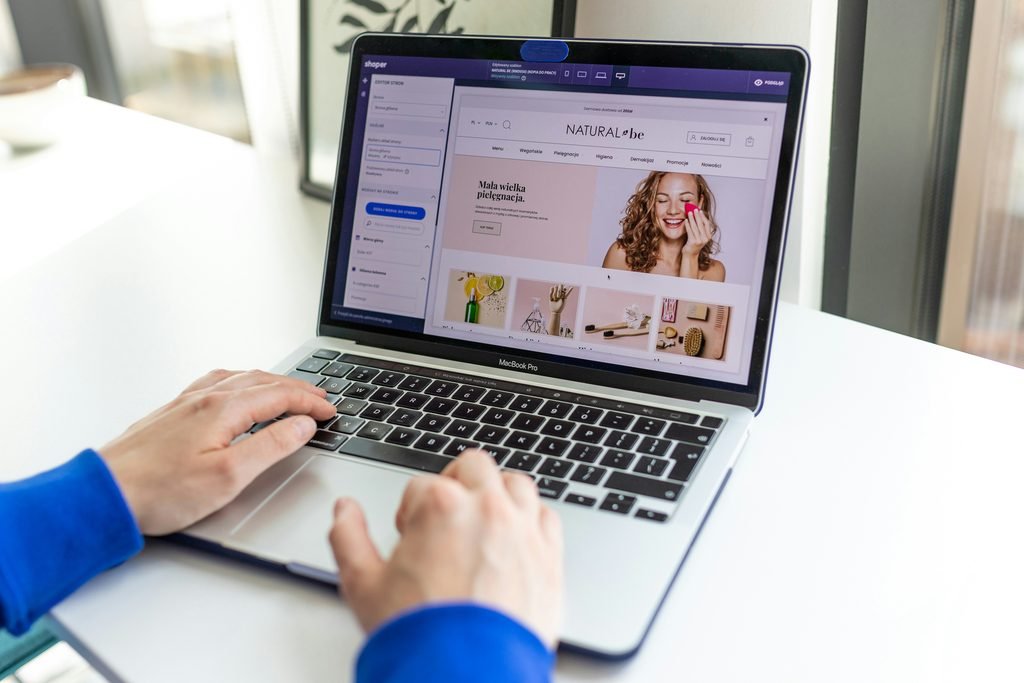
Your primary goal should be to create a store that is easy to understand and use.
Product pages play a major role in helping customers decide whether to purchase.
Each product should include:
- A descriptive product title
- A clear and helpful product description
- High-quality product images
- Accurate pricing
- Correct product variants
- Inventory information
- Relevant product specifications
- Shipping information
- Product benefits and features
Don’t rely entirely on supplier descriptions. Rewrite them to explain what the product does, who it is for, and why customers might find it useful.
Use clear product images that show the item from different angles.
3. Organize Your Product Collections
Collections help customers browse your catalog without searching through every product individually.
Create collections based on relevant categories, product types, or customer needs.
For example, a skincare store might organize products into:
- Facial Cleansers
- Moisturizers
- Serums
- Best Sellers
- New Arrivals
Check that every product appears in the appropriate collection and that collection pages display correctly.
4. Check Your Product Prices and Inventory
Incorrect prices or inventory settings can create problems after launch.
Review the following:
- Product prices
- Compare at prices
- Variant pricing
- SKU values
- Inventory quantities
- Inventory tracking settings
- Product availability
- Cost per item, where applicable
If you’re selling products with multiple sizes or colors, test every variant to confirm that customers can select the correct option.
5. Create Essential Store Pages
A professional Shopify store should provide customers with basic information about the business.
Before launching, create the following pages:
About Us
Explain who you are, what your business offers, and what customers can expect from your brand.
Contact Us
Provide a working contact form and appropriate customer support information.
Frequently Asked Questions
Answer common questions about products, shipping, payments, returns, and orders.
Privacy Policy
Explain how customer information is collected and handled.
Refund Policy
Clearly explain your return, refund, and cancellation conditions.
Terms of Service
Define the terms customers agree to when using your store.
Shipping Policy
Explain delivery methods, estimated shipping times, shipping charges, and relevant restrictions.
Make sure these pages are linked in your footer or navigation where appropriate.
6. Configure Your Payment Methods
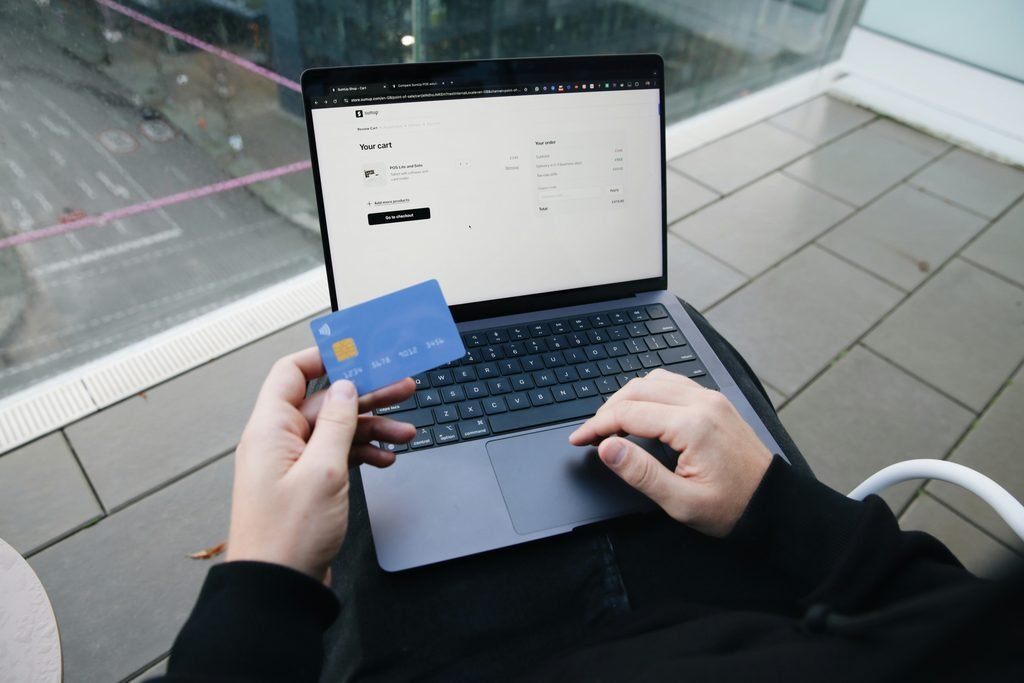
Customers must be able to pay using the payment methods supported by your business and target market.
Open your Shopify admin and review:
Settings → Payments
Check that:
- Your payment provider is configured correctly.
- Required verification steps are completed.
- Payment methods match your target market.
- Your business information is accurate.
- Test mode is disabled when you’re ready to accept real payments.
Payment provider availability depends on your country, business eligibility, and provider requirements.
7. Set Up Shipping and Delivery
Shipping mistakes can create unexpected costs and customer complaints.
Review your shipping settings carefully.
Make sure:
- Shipping zones match the countries you serve.
- Shipping rates are correct.
- Free shipping thresholds work properly.
- Product weights are accurate where required.
- Delivery estimates are realistic.
- Shipping restrictions are clearly communicated.
Test shipping calculations using addresses from your target markets.
If you offer local delivery or pickup, verify those settings separately.
8. Configure Taxes and Business Information
Your store should have accurate business information and appropriate tax settings.
Check:
- Business name
- Business address
- Store contact information
- Default currency
- Time zone
- Weight unit
- Tax settings
Tax obligations depend on your business location, customers, and applicable regulations. Don’t assume Shopify automatically handles every tax filing or payment obligation.
Review your requirements before accepting orders.
9. Connect Your Custom Domain
A custom domain makes your store easier to recognize and remember.
For example:
yourbrand.com
Before launching:
- Connect your domain to Shopify.
- Set your preferred primary domain.
- Confirm DNS records are configured correctly.
- Check that HTTPS works.
- Verify that alternative domain versions redirect appropriately.
Open your website in a browser and make sure the domain loads correctly without security warnings.
10. Optimize Your Shopify Store for SEO
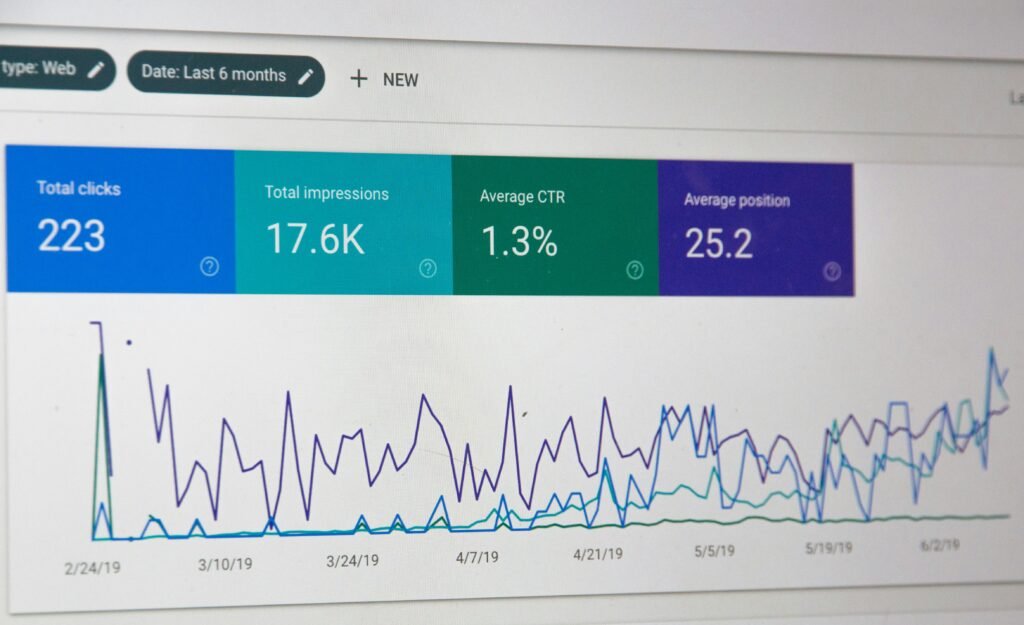
Search engine optimization helps search engines understand your store and its products.
Before launch, review the following SEO elements.
Homepage SEO
Write a descriptive homepage title and meta description that explain your business and products.
Product SEO
Optimize product titles, descriptions, URL handles, and image alt text.
Collection SEO
Add useful collection descriptions and relevant metadata.
Heading Structure
Use headings logically. Your main page topic should have a clear H1, followed by relevant H2 and H3 headings.
Internal Linking
Link related products, collections, and useful pages where appropriate.
XML Sitemap
Shopify automatically generates an XML sitemap at:
yourdomain.com/sitemap.xml
After launch, verify your domain in Google Search Console and submit the sitemap.
Remember that submitting a sitemap doesn’t guarantee immediate indexing or rankings.
11. Optimize Product Images
Large image files can affect page loading speed.
Before uploading product images:
- Use appropriate image dimensions.
- Compress images without noticeable quality loss.
- Avoid unnecessarily large image files.
- Use descriptive filenames where practical.
- Add meaningful alt text.
- Keep image quality consistent across your catalog.
Shopify serves images through its CDN and supports image optimization, but uploading unnecessarily large source files can still affect performance and image handling.
12. Check Your Store’s Mobile Responsiveness
Many ecommerce visitors browse and shop using smartphones.
Your store should work properly on mobile devices, not just desktop computers.
Test:
- Homepage layout
- Navigation menu
- Product image galleries
- Product variant selectors
- Add to cart buttons
- Cart drawer or cart page
- Checkout experience
- Footer links
- Popup behavior
Make sure text is readable and important buttons are easy to tap.
Avoid horizontal scrolling and elements that overlap or disappear.
13. Test Your Navigation and Links
Broken links can frustrate customers and prevent them from finding important information.
Check:
- Header navigation
- Footer navigation
- Collection links
- Product links
- Contact links
- Policy links
- Social media links
- Promotional banners
- Homepage buttons
Test each important link manually.
Don’t assume everything works simply because the theme preview looks correct.
14. Review Your Checkout Experience
Checkout is one of the most important parts of your store.
A customer might like your products and still abandon the purchase if checkout is confusing or unreliable.
Review:
- Cart functionality
- Product quantities
- Discount codes
- Shipping options
- Payment methods
- Customer information fields
- Order confirmation
- Checkout notifications
Make sure customers can move from product selection to order completion without unnecessary friction.
15. Place Test Orders
One of the most important pre-launch steps is placing test orders.
Shopify recommends testing your checkout and order process before opening your store.
A test order helps you verify:
- Checkout functionality
- Payment configuration
- Inventory updates
- Shipping calculations
- Tax calculations
- Order processing
- Customer notifications
Use Shopify Payments test mode or another supported test payment method where available.
After testing, disable test mode before accepting real payments.
You should also check cancellation, refund, and fulfillment workflows.
Reference: Shopify’s official guide to preparing your store for launch.
16. Check Your Customer Notification Emails
Shopify sends automated notifications for different customer actions.
Review the emails associated with:
- Order confirmation
- Shipping confirmation
- Order cancellation
- Refund confirmation
- Customer account notifications
Check the sender email address and ensure your email domain is properly authenticated where required.
Place a test order and review the emails from the customer’s perspective.
Make sure the content is readable, accurate, and consistent with your brand.
17. Install Only Essential Shopify Apps
Shopify apps can add useful features, but installing too many apps before launch can increase complexity and sometimes affect performance.
Review your installed apps and remove anything unnecessary.
Common app categories include:
- Reviews and testimonials
- Email marketing
- Product bundles
- Search and filtering
- Customer support
- SEO tools
- Analytics and tracking
Before installing an app, ask whether it solves a real business problem.
Avoid installing multiple apps that perform the same function.
18. Review Your Shopify Store Speed
A slow website can make shopping frustrating, especially on mobile devices.
Before launch, review your store using Google PageSpeed Insights.
Check:
- Largest Contentful Paint (LCP)
- Interaction to Next Paint (INP)
- Cumulative Layout Shift (CLS)
- Image loading
- Unnecessary scripts
- App embeds
- Theme performance
Pay particular attention to large homepage banners, product images, sliders, and third-party apps.
Don’t chase a perfect PageSpeed score at the expense of useful store features. Focus on real loading and interaction problems that affect customers.
19. Set Up Google Analytics and Search Console
Analytics tools help you understand how customers interact with your store.
Set up the appropriate tracking for:
- Website visitors
- Product views
- Add to cart events
- Checkout activity
- Purchases
- Traffic sources
Google Analytics 4 can help you understand visitor behavior and ecommerce activity.
Google Search Console helps you monitor search visibility, indexing, and search performance.
After launching, verify that tracking works correctly and that purchase events aren’t being recorded incorrectly.
20. Review Your Homepage Content
Your homepage should quickly answer three questions:
- What does your business sell?
- Why should customers consider your products?
- What should visitors do next?
Review your:
- Hero section
- Main headline
- Supporting text
- Featured collections
- Best-selling products
- Brand information
- Promotional offers
- Calls to action
Avoid vague headlines that don’t explain what your store offers.
Your homepage should help visitors understand your business without making them scroll through unnecessary content.
21. Check Your Product Search and Filters
If your store has several products or collections, search and filtering become important.
Test:
- Product search
- Search suggestions
- Collection filters
- Sorting options
- Price filters
- Product availability filters
Make sure customers can find relevant products quickly.
For larger catalogs, a well-organized collection structure and useful filters can improve the shopping experience.
22. Review Your Cart Experience
The cart should clearly display what customers intend to purchase.
Check:
- Product names
- Product images
- Variant selections
- Quantities
- Prices
- Discounts
- Subtotal
- Shipping information
- Checkout button
Test adding products, removing products, and changing quantities.
If you use a cart drawer, make sure it opens and closes correctly on desktop and mobile.
23. Check Security and Store Access
Before launch, review your store access and account security.
Make sure:
- Your Shopify account uses strong authentication.
- Staff permissions are appropriate.
- Unnecessary staff accounts are removed.
- Storefront password protection is understood.
- Customer information is handled responsibly.
Keep administrative access limited to people who need it.
24. Remove Shopify Store Password Protection
When you’re ready to launch, customers must be able to access your storefront.
During development, Shopify stores are generally protected by a storefront password.
Before removing it:
- Confirm your subscription plan requirements.
- Verify your payment configuration.
- Check your custom domain.
- Complete your test orders.
- Review your policies and contact information.
- Preview the final storefront.
Then remove password protection using the appropriate Online Store access settings in Shopify.
Once the store is public, visitors can access your storefront without entering the password.
25. Perform a Final Pre-Launch Review
Before announcing your store, perform one final review.
Check your store on desktop and mobile.
Confirm that:
- Products are available.
- Prices are correct.
- Navigation works.
- Policies are published.
- Shipping settings are accurate.
- Payments are ready.
- Test mode is disabled.
- Checkout works.
- Notifications are working.
- Your domain loads correctly.
- Analytics tracking is configured.
- Password protection is removed.
After launch, monitor orders, customer feedback, website performance, and any checkout issues.
Your first launch doesn’t need to be perfect, but it should be functional, accurate, and ready to serve customers.
Shopify Store Launch Checklist
Use this checklist before making your Shopify store public.
Store Design and Products
- Homepage design completed
- Logo and branding reviewed
- Product descriptions optimized
- Product images checked
- Product prices verified
- Collections organized
- Navigation tested
Store Settings
- Business information added
- Domain connected
- Payment methods configured
- Shipping rates configured
- Tax settings reviewed
- Currency and time zone verified
Customer Experience
- About Us page published
- Contact page published
- FAQ page published
- Refund policy published
- Privacy policy published
- Shipping policy published
- Terms of service published
SEO and Performance
- Homepage metadata optimized
- Product metadata reviewed
- Image alt text added
- Mobile responsiveness checked
- Website speed reviewed
- Sitemap verified
- Google Search Console configured
Final Testing
- Test order completed
- Payment settings verified
- Shipping tested
- Customer emails reviewed
- Cart tested
- Checkout tested
- Analytics checked
- Password protection removed
Common Shopify Store Launch Mistakes to Avoid
Even after completing the checklist, avoid these common mistakes:
Launching without a test order: A store that looks correct may still have payment, shipping, or checkout problems.
Using incomplete product descriptions: Customers need enough information to understand what they’re buying.
Ignoring mobile users: A desktop-friendly store can still provide a poor mobile shopping experience.
Installing too many apps: Unnecessary apps can increase costs and introduce technical problems.
Forgetting store policies: Customers need clear information about delivery, returns, and customer support.
Expecting instant SEO results: Publishing a store doesn’t mean Google will immediately index or rank every page.
Launching without a marketing plan: A public website doesn’t automatically attract visitors. You need a plan for traffic, customer acquisition, and promotion.
Final Thoughts
Launching a Shopify store is an important step, but successful ecommerce requires more than making a website public.
A properly prepared store should provide a clear shopping experience, accurate product information, reliable checkout functionality, and a solid technical foundation.
Use this Shopify store launch checklist to identify problems before customers encounter them.
Once your store is live, continue improving its design, performance, SEO, and conversion rate based on actual customer behavior.
Need help preparing your Shopify store for launch?
I provide Shopify store development, theme customization, ecommerce SEO, speed optimization, and store audits to help businesses prepare their online stores for customers.
Visit Inamullah Zahoor to explore my Shopify development and ecommerce services.