Introduction
Building a Shopify store is only the first step. Before launch, check that customers can find products, pages work well on mobile, checkout functions correctly, and search engines can understand your content.
This checklist covers essential pre-launch checks. Review each point based on your products, target market, and shipping requirements.
1. Review your store settings and business details
In Shopify Admin, review your business name, store address, currency, time zone, and contact information. Incorrect settings can create confusion with taxes, shipping, or order details.
Make sure customers can find a support email, contact page, and relevant store policies. Open each page yourself to confirm it displays correctly.
2. Test your theme on mobile
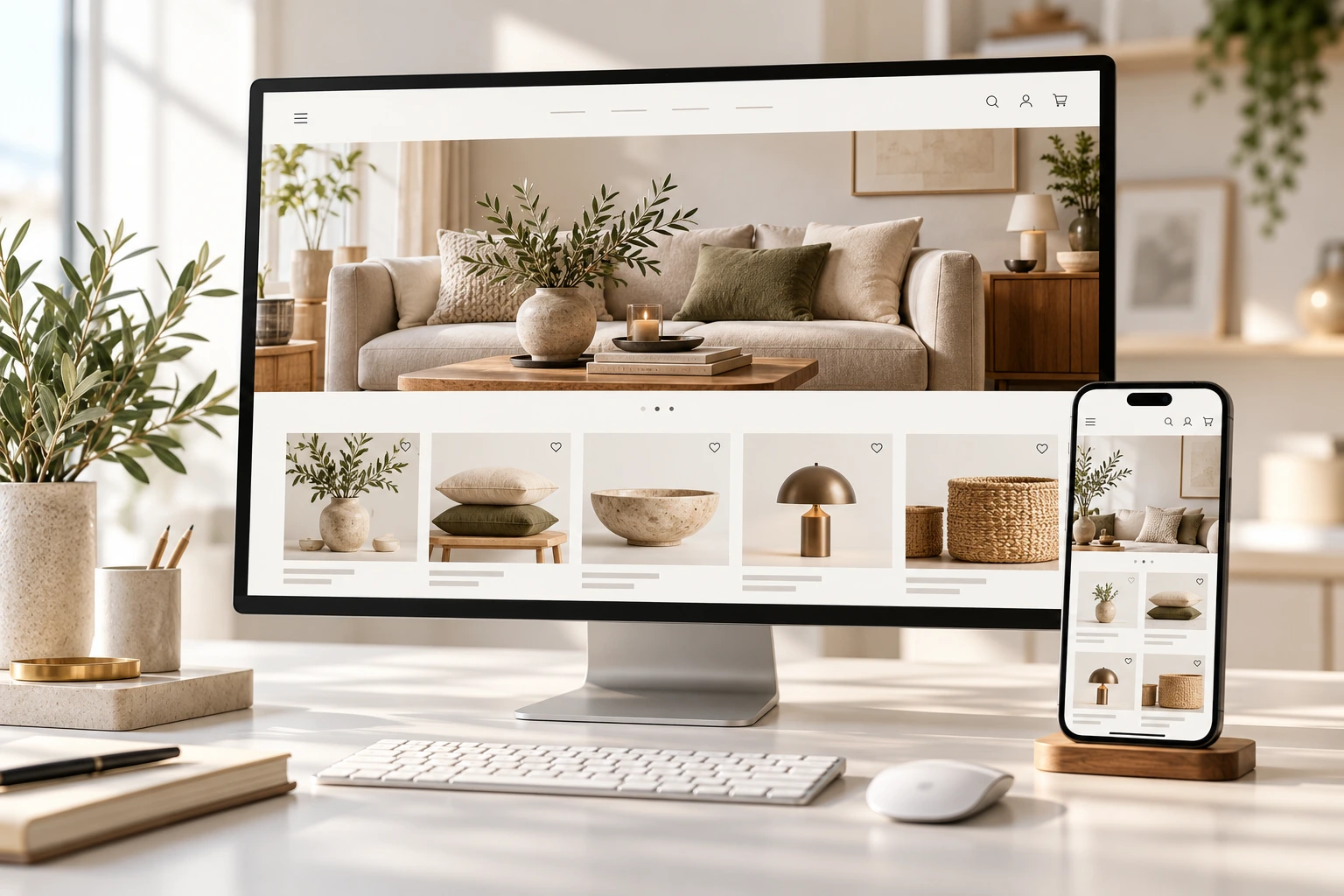
Checking the desktop layout alone isn’t enough. Test the store on mobile devices and different screen widths.
Check that:
- The navigation menu opens and closes properly
- Text is easy to read
- Buttons are easy to tap
- Product images display and crop correctly
- Product pages and the cart don’t cut off content
- Announcement bars and pop-ups don’t cover important content
A layout that works at one mobile width may still break at another.
3. Complete your product pages
Each product page should give customers the information they need to make a purchase decision. Review product titles, descriptions, prices, options, and images.
Check that each page includes:
- A clear product name and description
- Correct pricing and variants
- Relevant details, such as size, materials, or compatibility
- Clear, high-quality product images
- Accurate stock status
- Relevant shipping or return information
Rather than copying a manufacturer’s description, write content that answers your customers’ likely questions.
4. Organize collections and navigation
Group products into relevant collections. Keep the menu focused on links that help visitors find products, policies, and support.
If customers have to open several menus to find a product, simplify the navigation. Use collection names that are clear and easy to understand.
5. Place a test order
A test order helps you check whether the purchase process works from start to finish. Use Shopify’s test payment option or your payment provider’s test mode.
Test these steps:
- Add a product to the cart
- Change the quantity or variant
- Test a discount code, if configured
- Check the shipping rate
- Complete checkout
- Review the confirmation page and order email
Follow Shopify’s and your payment provider’s current instructions. Use test mode to avoid accidentally processing a real payment.
6. Make shipping and return policies clear
Explain shipping charges, delivery estimates, return conditions, and the refund process. Also check that the shipping rates shown at checkout are correct.
If you sell in multiple regions, requirements and rates may differ. Don’t publish a policy that doesn’t reflect how your business actually operates.
7. Review your basic SEO settings
Check the title and meta description for each important page. Keep product and collection URLs readable, and write descriptive alt text for images.
Before launch, review:
- Page titles for your homepage, products, and collections
- Missing or duplicate meta descriptions
- Broken links
- Product image alt text
- Search visibility settings
- Your Shopify sitemap and domain setup
These checks support search visibility, but they don’t guarantee rankings. Search results take time, and ongoing work is usually needed.
8. Check page speed and unnecessary apps
Apps can add scripts or extra code to your store. Review what each app does. Before removing one, confirm that it isn’t powering a feature your store still needs.
Upload images at suitable dimensions and file sizes. After launch, test key pages with tools such as PageSpeed Insights, and review the real mobile experience as well as the scores.
9. Verify analytics and tracking
If you use Google Analytics, Google Search Console, Meta Pixel, or other tracking tools, check that they’re configured correctly and recording the intended events.
Don’t mistake test orders or test events for real sales data. After launch, look for missing or duplicated events in your analytics reports.
10. Check your domain and launch settings
Connect your custom domain to Shopify and verify its DNS status. Wait for SSL to activate, then check that the site loads over https.
Review your storefront password and availability settings before launch. If password protection is still active, visitors may not be able to access your store.
Final pre-launch review
Browse your homepage, collection pages, product pages, cart, checkout, contact page, and policies on both desktop and mobile. Test links, submit forms, and check for spelling or pricing errors.
Fix any issues you find, then test again. A final review can improve customers’ first experience with your store.